

The two money flows
Within a Treasury Account there are two ways money moves:Deposit
Moving funds into the Treasury Account.
Transfer
Moving funds out of the Treasury Account to a recipient.
For a full walkthrough of moving money out, see the transfer flow. This page covers what Treasury Accounts are and how to deposit into one.
Supported currencies
Treasury Accounts support AUD and USD. You can open, deposit into, and transfer from a Treasury Account in either currency.
You can hold several Treasury Accounts in the same currency. Each one has its own balance and its own bank details.
USD Treasury Accounts are enabled for your merchant account by Hello Clever. If you do not see USD in the Currency switcher under Treasury Accounts, contact Hello Clever Support.
Treasury Account currency support is separate from payin and payout support, which covers a much wider range of currencies. JPY payins, for example, are supported through P2C bank transfer. For the current list of supported currencies and payment methods, see payment methods and currencies.
Opening a USD Treasury Account
An AUD Treasury Account is ready as soon as you create it. A USD Treasury Account is different: Hello Clever reviews your details first, and the account’s bank details are only issued once the review is approved.1
Start a new USD Treasury Account
On the Treasury All Balances screen, switch the currency to USD and select New Treasury Account.
2
Complete the form and submit
Fill in the form and submit it. The fields you are asked for are set up for your merchant account by Hello Clever, so they may differ from the AUD form. Enter names and business details exactly as they appear in your business records.
3
Wait for review
The account appears with the status Submitted while Hello Clever reviews it. Review can take anywhere from a few hours to a few days. The account has no bank details, balance, or money movement actions yet.
4
Respond if changes are requested
If Hello Clever needs something corrected or added, the status changes to Rejected and the requested changes are shown on the account. Edit your submission and submit it again.
5
Account goes live
Once your submission is approved, the account’s bank details are issued within seconds and the status changes to Active. You can now top up, receive settlements, and move funds.
Submission statuses
Each time you resubmit, a new submission is created for review. Hello Clever keeps your earlier submissions on record, so nothing you entered before is lost.
Finding your account details
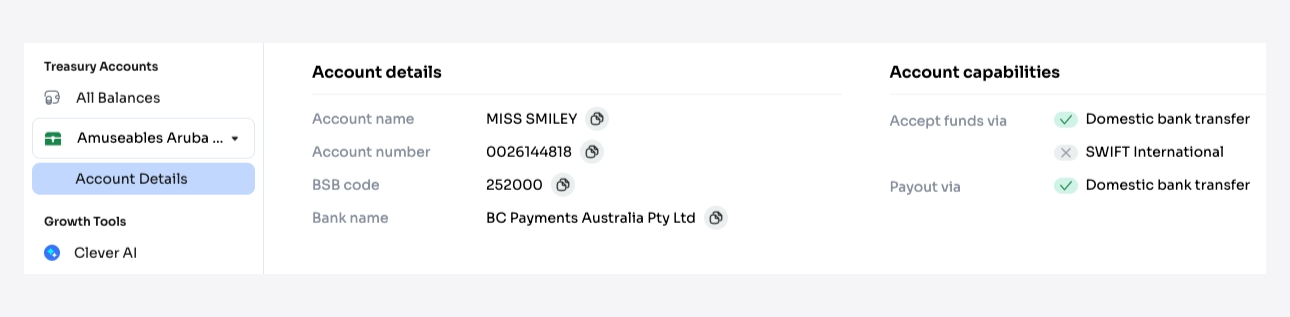 Before you can deposit into a Treasury Account, you need its banking details. You will find these on the merchant dashboard, under the account’s Account Details tab. The key fields are:
- Account name: the legal name on the account (for example, UMBRELLA COMPANY).
- Account number: the unique account identifier.
- BSB code: required for AUD accounts.
- Bank name: the name on the account.
Deposit flow
Once a Treasury Account has been created, you can simulate a deposit to confirm that incoming funds are received and credited correctly.Simulating an AUD deposit (TestBank)
For AUD accounts, use the TestBank simulator athttps://test-bank.cleverhub.co/bsb-info, which mimics a payment from a customer’s bank account.
1
Open TestBank and choose the tab
Open the TestBank page and select the BSB & Account Number tab.
2
Enter the account details
Enter the Treasury Account’s account holder name, BSB number, and account number, copying these from the merchant dashboard.
3
Continue
Click Next.
4
Enter an amount
Enter the amount you want to deposit. You can pay the exact amount, or deliberately under-pay or over-pay to test edge cases.
5
Pay
Click Pay Now. To run another test, click Pay another to reset the form and start again.